Hard drive prices have been going the wrong direction lately, which makes building large amounts of backup storage more expensive than it used to be. One place I haven’t spent much money, though, is on the computers that hold those backup drives.
In fact, I currently have three backup machines built from computers that cost me nothing.
One is an old Dell OptiPlex 7010 that was discarded from work. The other two are even better. They were an old Dell i3 and a 2012/2013 i5 desktop sitting at a friend’s house waiting to be taken to an electronics recycling center. I took them instead.
None of these machines would be particularly exciting as a desktop computer today. But moving backup files around doesn’t require much CPU power, and OpenMediaVault runs perfectly well on old hardware. Add a cheap SSD for the operating system, some large hard drives for storage, and an old computer that was headed for recycling can still be surprisingly useful.
Fiber Changed What Was Practical
The two remote machines came about in 2023, when gigabit fiber finally became available in our neighborhood. Going from a typical residential Internet connection (fast download, but an abysmal 15 Mbps up) to symmetrical 1000/1000 service opened up some possibilities.
A buddy and I had talked about keeping backups at each other’s houses for quite a while. With fast symmetrical fiber, there was no longer much of a technical reason not to.
I put one of the rescued Dell desktops in his basement, and he has another one in my basement. Both run OpenMediaVault from small SSDs and have two 8TB hard drives installed for backup storage. We connect the machines using Tailscale, so neither of us had to expose an SMB share or other services directly to the Internet.
The drives aren’t configured as RAID. I go into more detail about why I made that choice in Why My Backup Targets Don’t Use RAID. They’re backup targets, not primary storage. If a drive fails, the data still exists at its original location and, depending on the data, in other backups as well. I’d rather use the available capacity for additional backup copies than duplicate every backup disk with RAID.
Seed It Locally First
We didn’t transfer the initial multi-terabyte backups across the Internet.
The machines were built and initially populated while they were still at our own homes. Even with gigabit fiber, there’s little reason to push something like 10TB across the Internet when the backup computer can temporarily sit ten feet from the server on the same gigabit network.
Once the initial copy was complete, we moved the computer to its offsite location. From then on, only changes needed to travel between the houses. Most of the nightly jobs now finish in only a few minutes.
That makes the whole arrangement much more practical.
Free Computers Aren’t Always Perfect Computers
There was one problem with using computers that were never intended to be storage servers.
Cooling.
The old i5 Dell had room for the hard drives, but virtually no useful airflow through the front of the case. With two large drives installed and working at the same time, temperatures climbed much faster than I liked, even with the side of the case open during setup and testing.
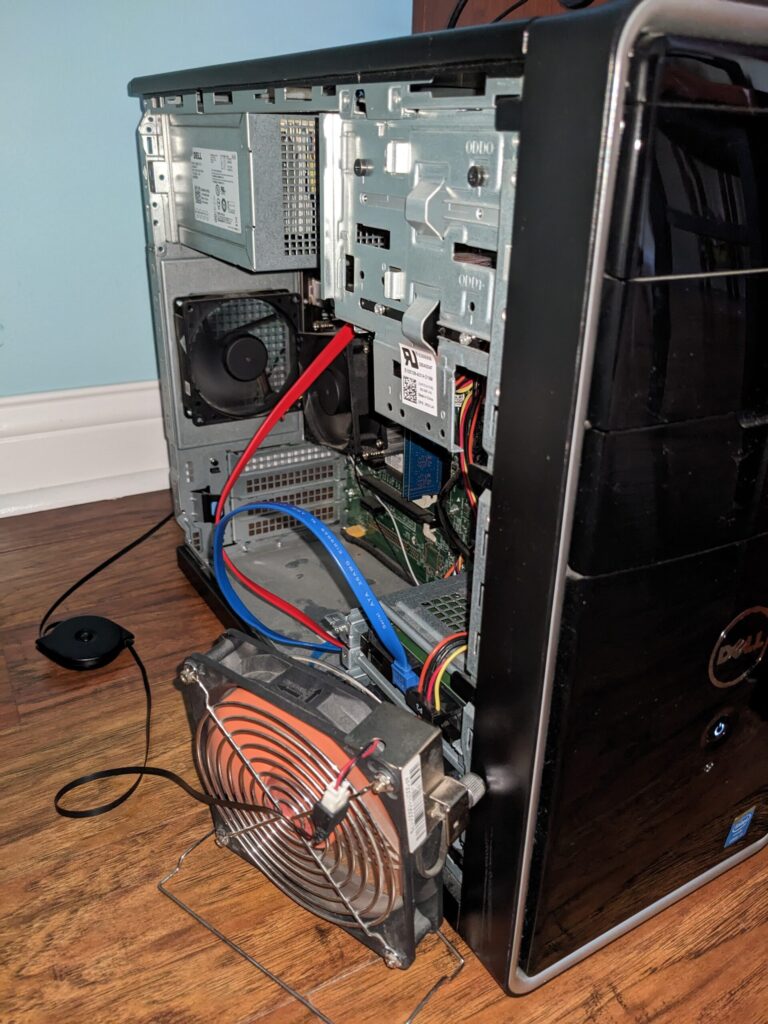
My first solution wasn’t exactly elegant.
I drilled holes in the front of the case.
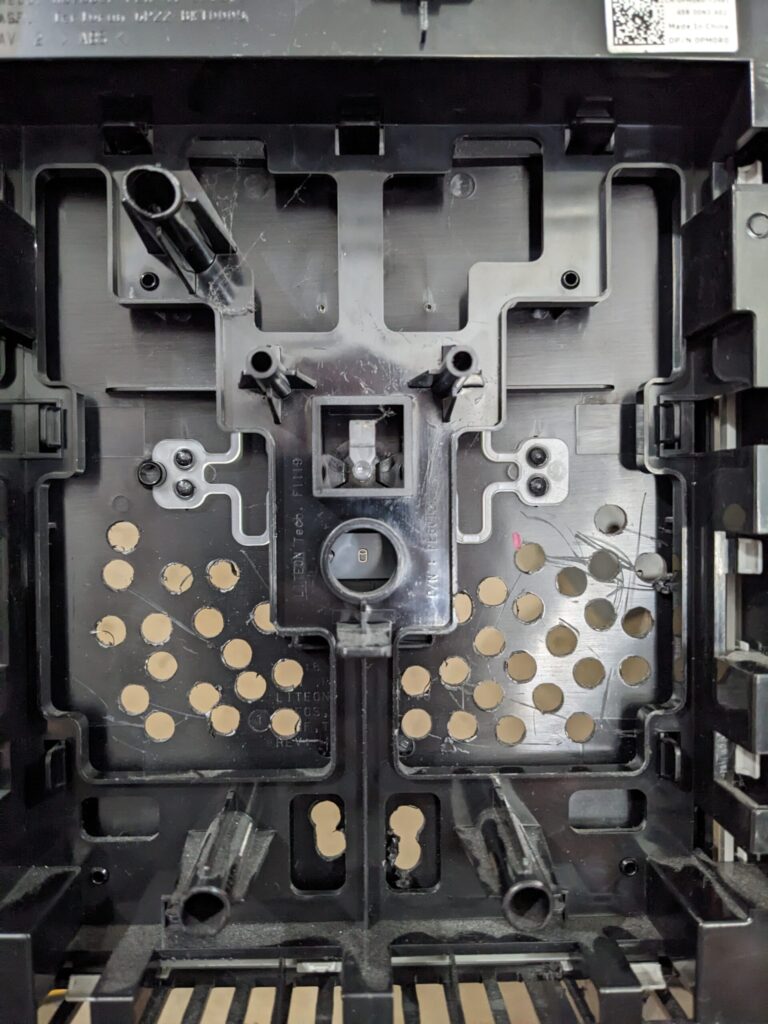
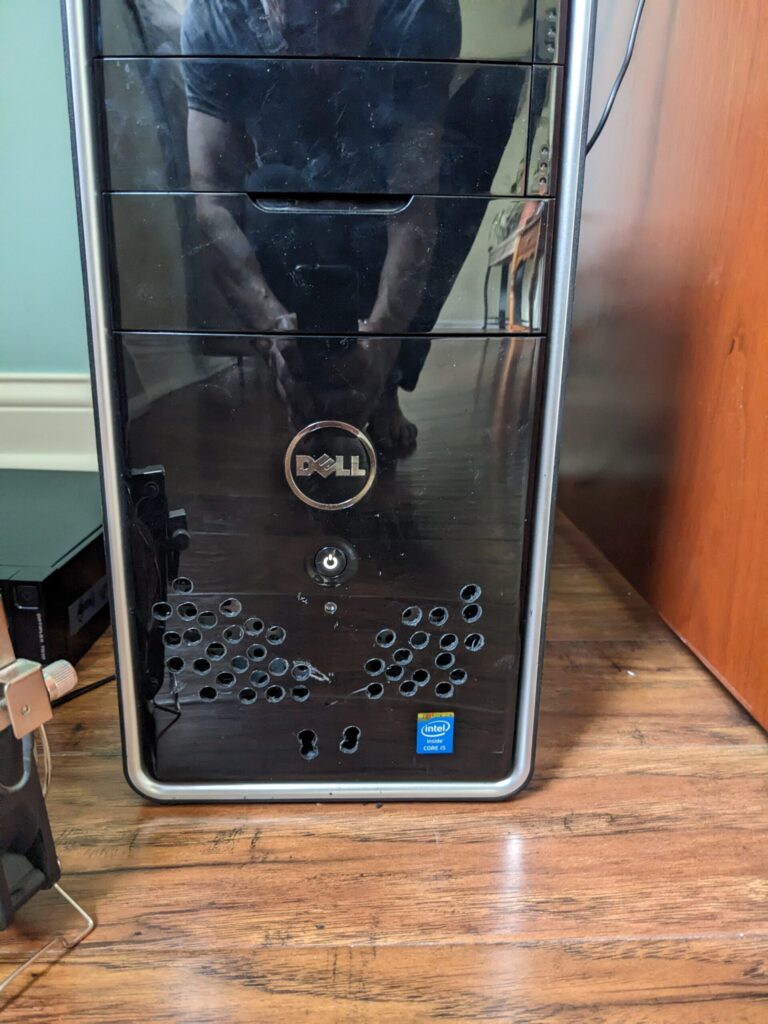
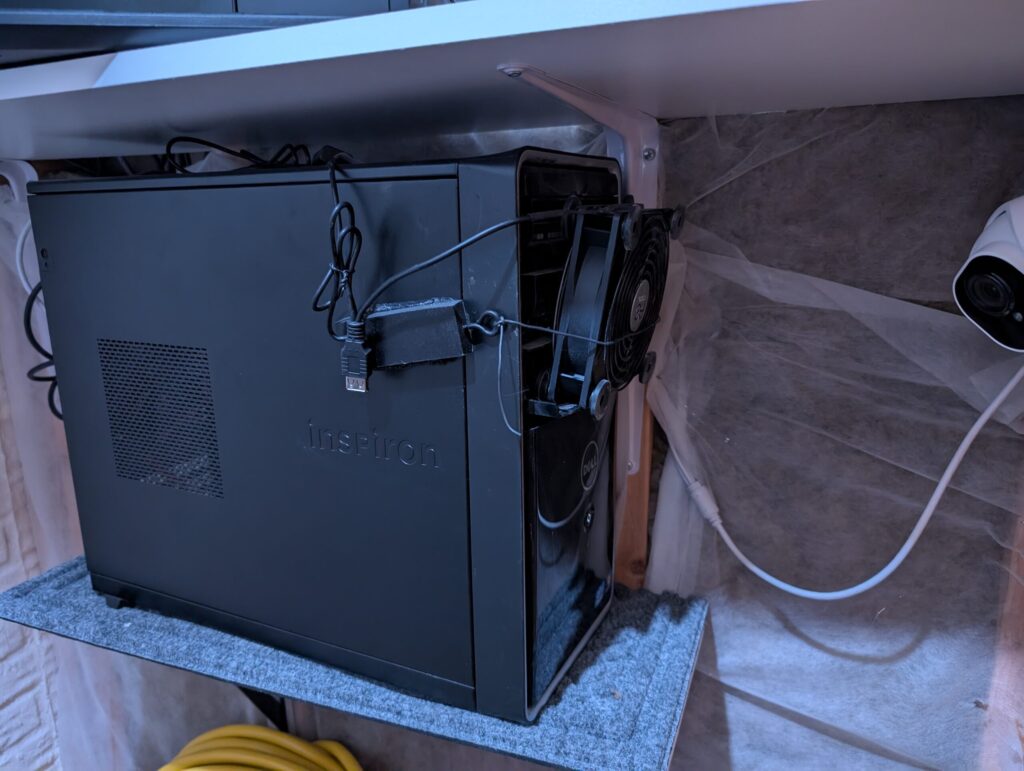
Then I mounted a large USB fan to the front of those holes to force cool air directly across the hard drives. Temps dropped; not dramatically, but definitely back down into safe territory. I quickly found, however, that holding the fan on with duct tape wasn’t a long-term solution. So I upped the crazy level further by chopping some 1×2 boards, adding an eye bolt, spray painting, and then super gluing two to the i5. I also did a second set for the i3 while I was at it.
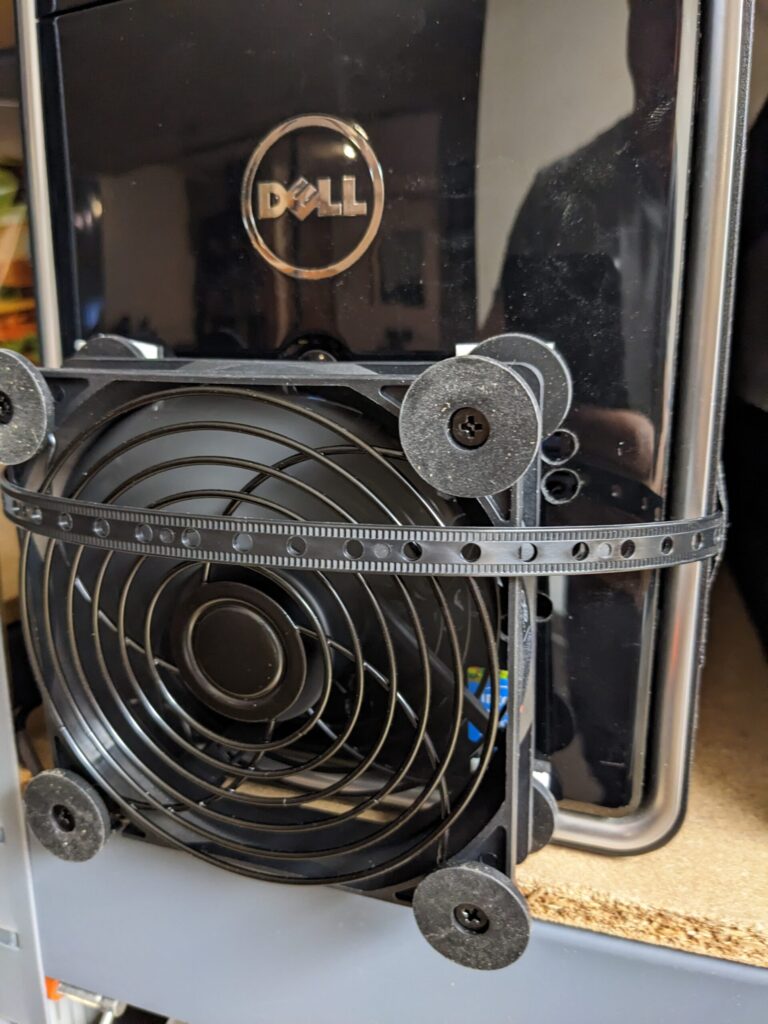
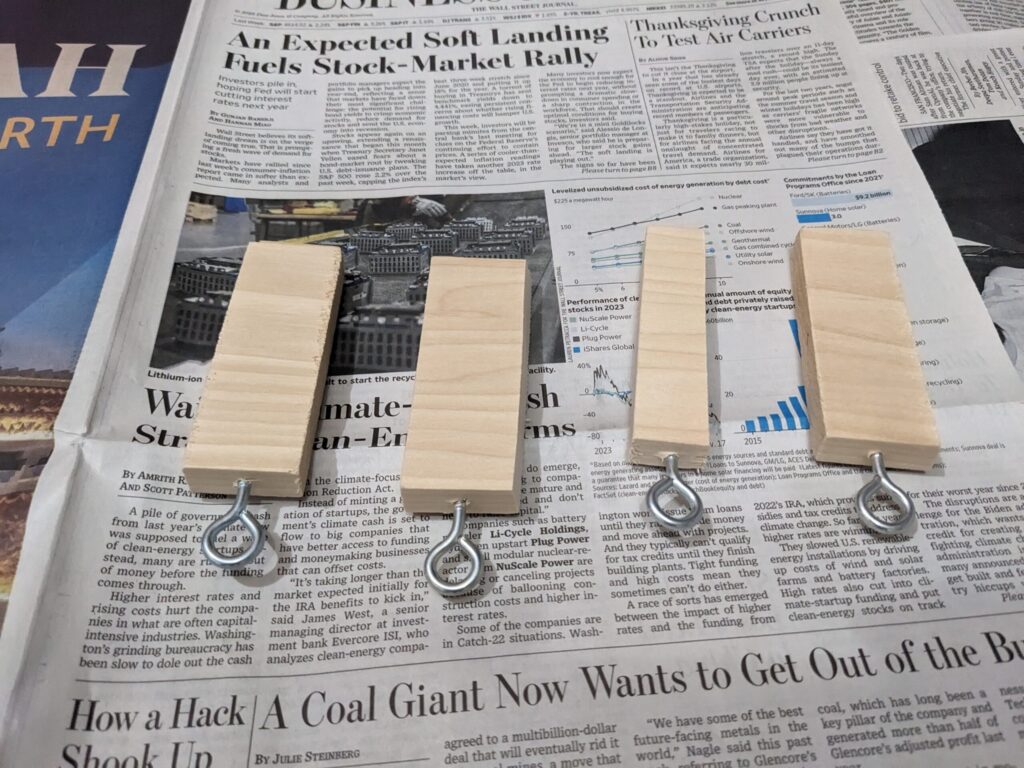
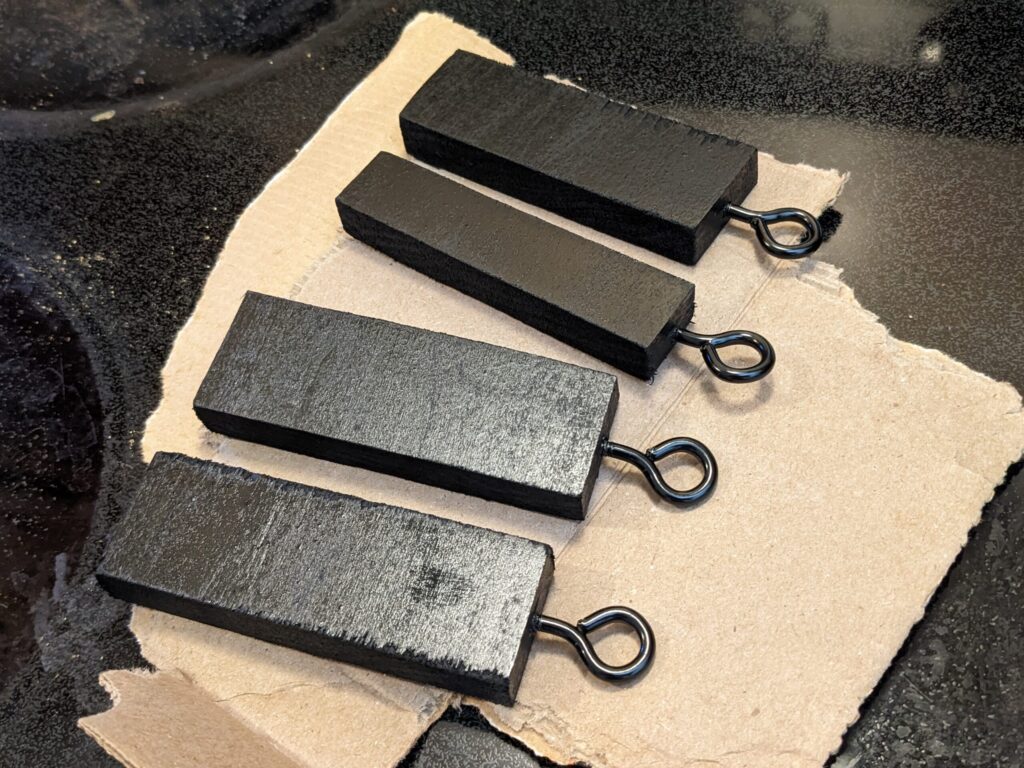
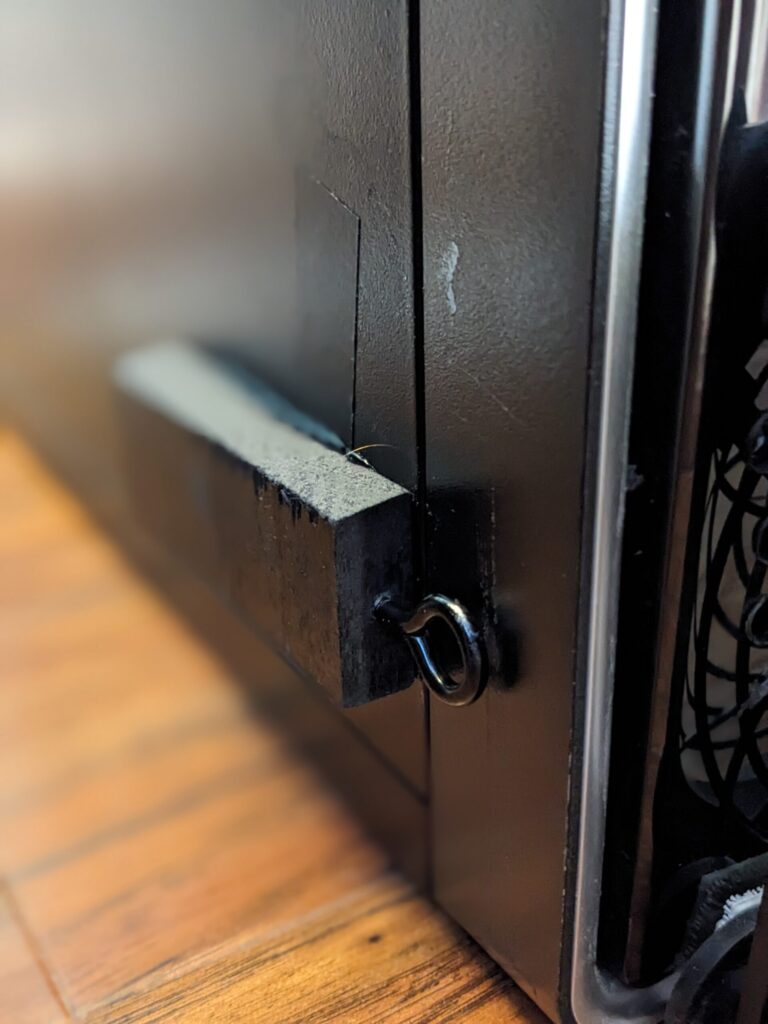
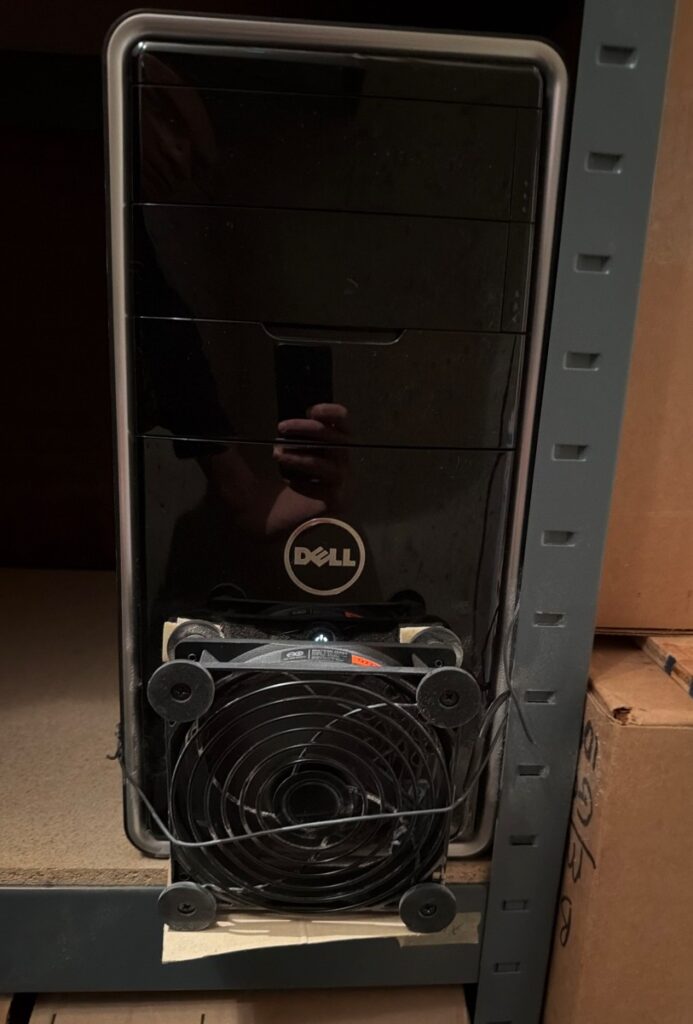
It looks ridiculous, but it works.
The idle temps of the two drives are ambient levels (28C/82F), and the temps don’t rise appreciably during rsync jobs (32C/90F).
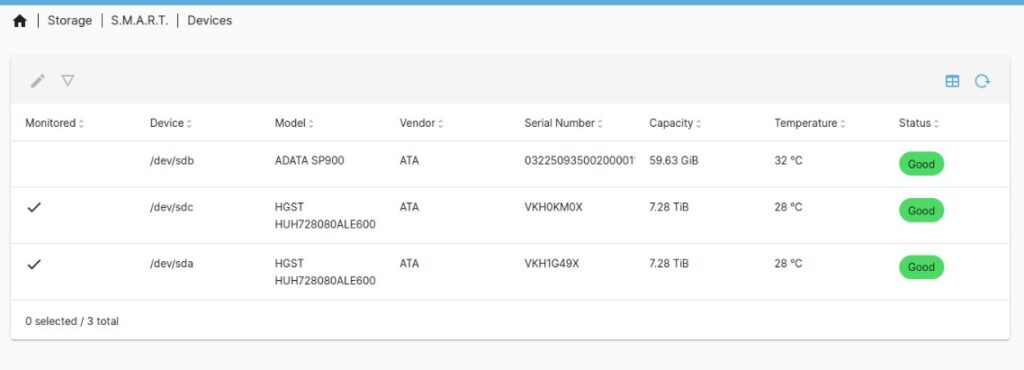
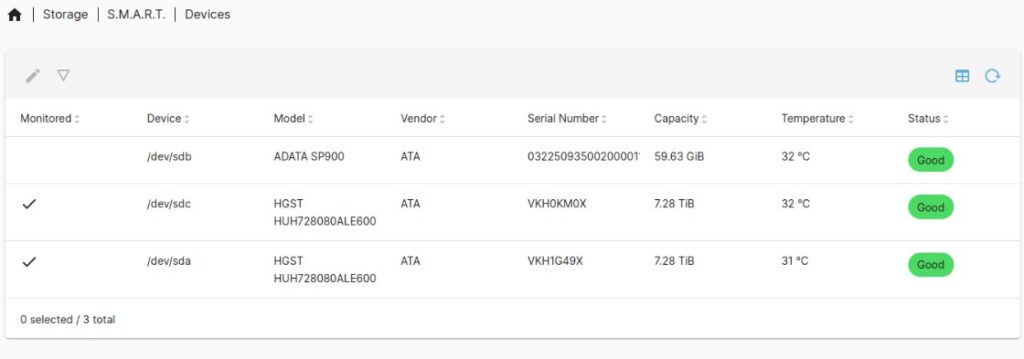
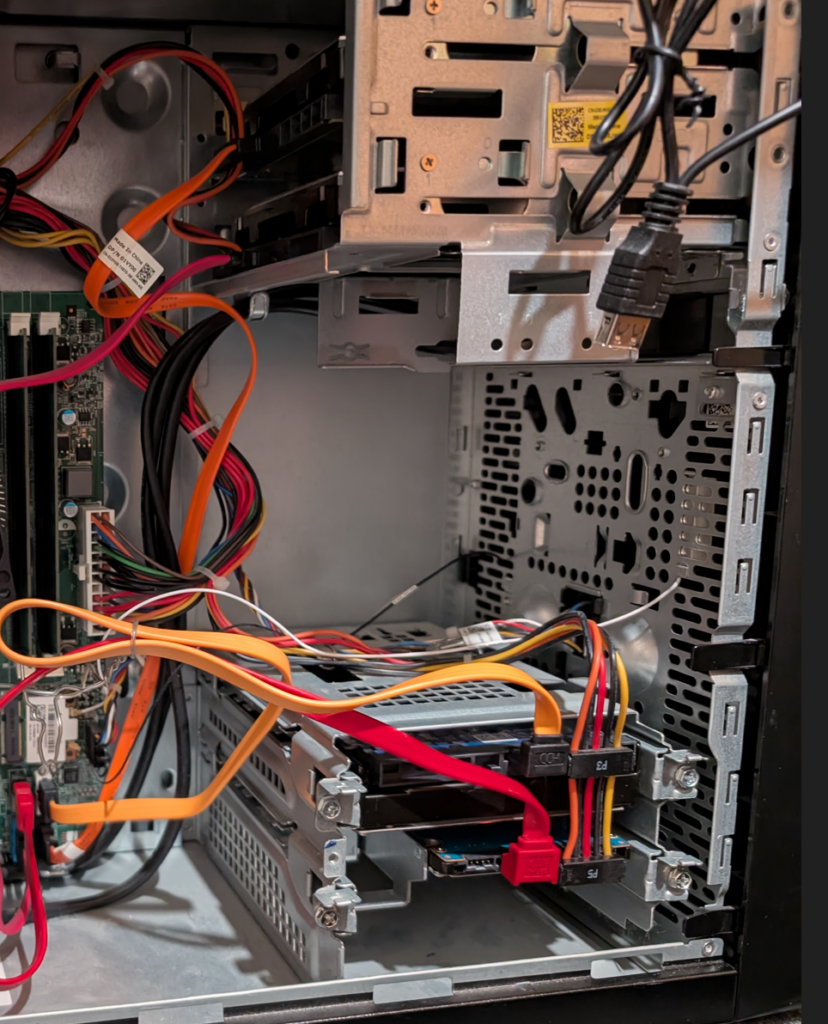
The later i3 machine received a somewhat more elegant version of the same idea after we’d learned from the first one. He initially placed two 8TB drives up into the 5.25″ bays and then removed the dust cover hinged doors. We grafted the large fan to the front and it worked well.
A few months ago he needed more storage so we added one of the 4TB drives that were piled up on a shelf. We had to place it at the bottom of the server (above the SSD), but it worked. Temperatures stay reasonable under load, with the bottom-most drive running around 38°C/100°F.”
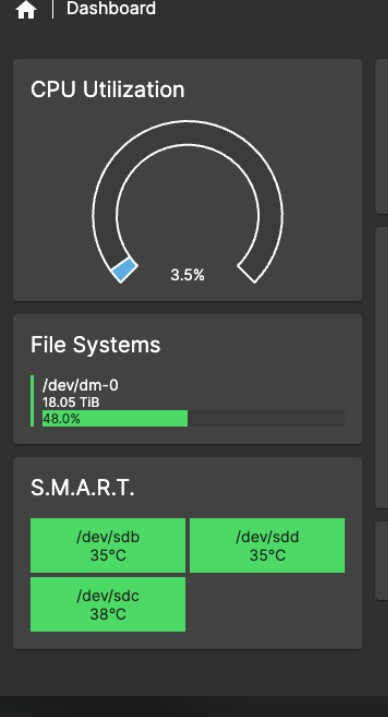
Because these are backup targets rather than active file servers, we have the drives configured to spin down when they’re not being used. The machines normally receive their backups in the middle of the night, the jobs usually finish within about five minutes, and the drives spend most of the rest of the day spun down.
It’s certainly not how Dell intended these computers to be used, but it has worked well for us.
My Local Backup Is Even Simpler
I also use an old Dell OptiPlex 7010 as a local backup target. That machine was a castoff from work, so once again the computer itself cost me nothing.
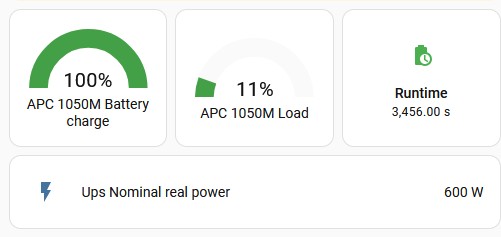
It has a small SSD running OpenMediaVault and a 6TB hard drive in an external enclosure. The machine is connected to a UPS and also monitors the UPS, so it can respond appropriately to an extended power outage. The 7010 also has openmediavault-nut plugin installed in OMV so that it can pass UPS data to my Home Assistant instance. That UPS is protecting this backup device plus the i3 offsite backup machine.
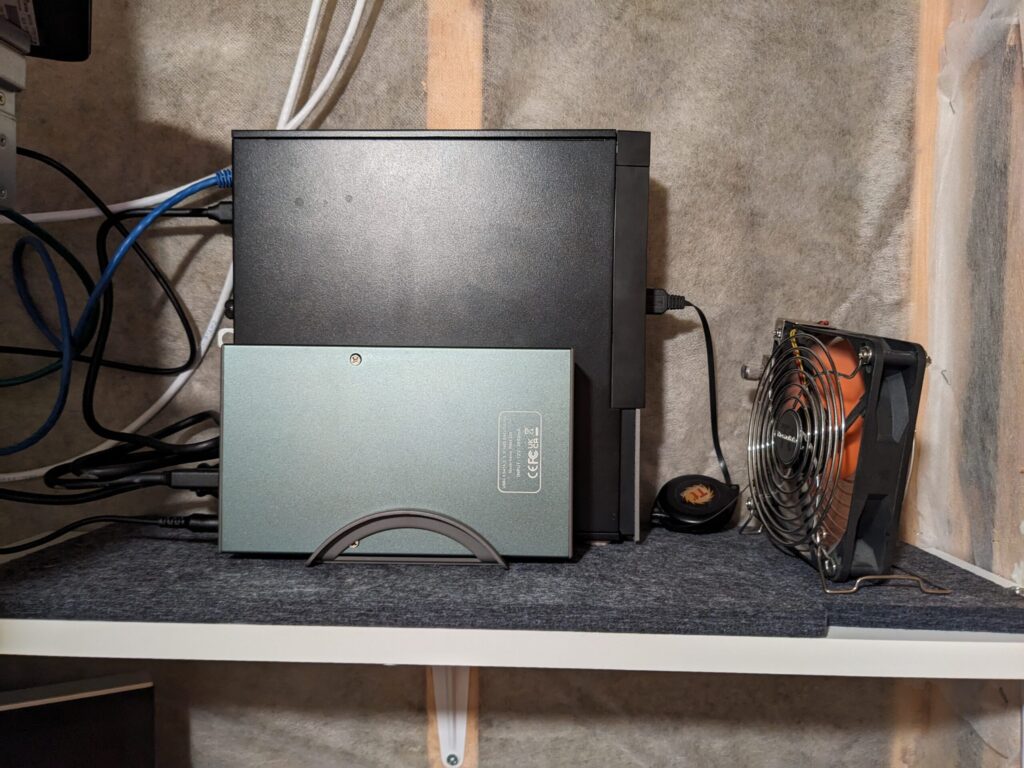
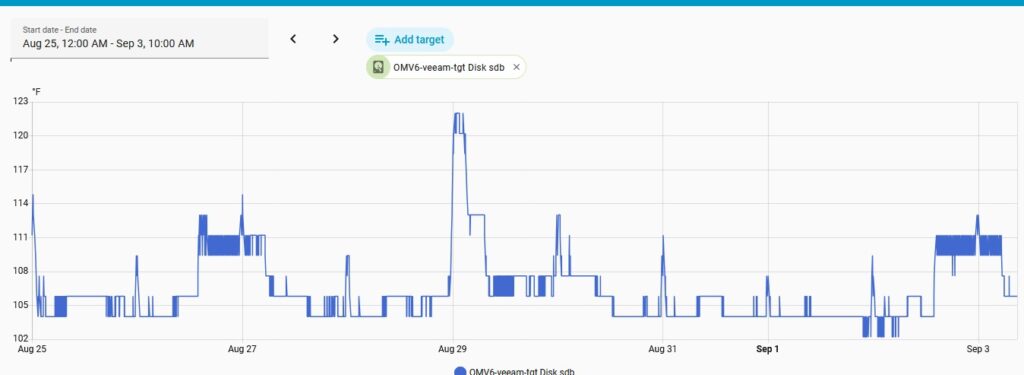
I also had to pay close attention to heat. The external case does get toasty with the drive running for backups. This device is where my Veeam desktop backups go, and backups can go for an hour or more. To keep cooler air moving across the case, I added two USB fans. I found that shifting the enclosure to the other side of the 7010 and directing air from the cool entryway toward a second fan blowing directly onto it dropped temperatures another 3–4°F. Not pretty, but no one sees into this sump closet.
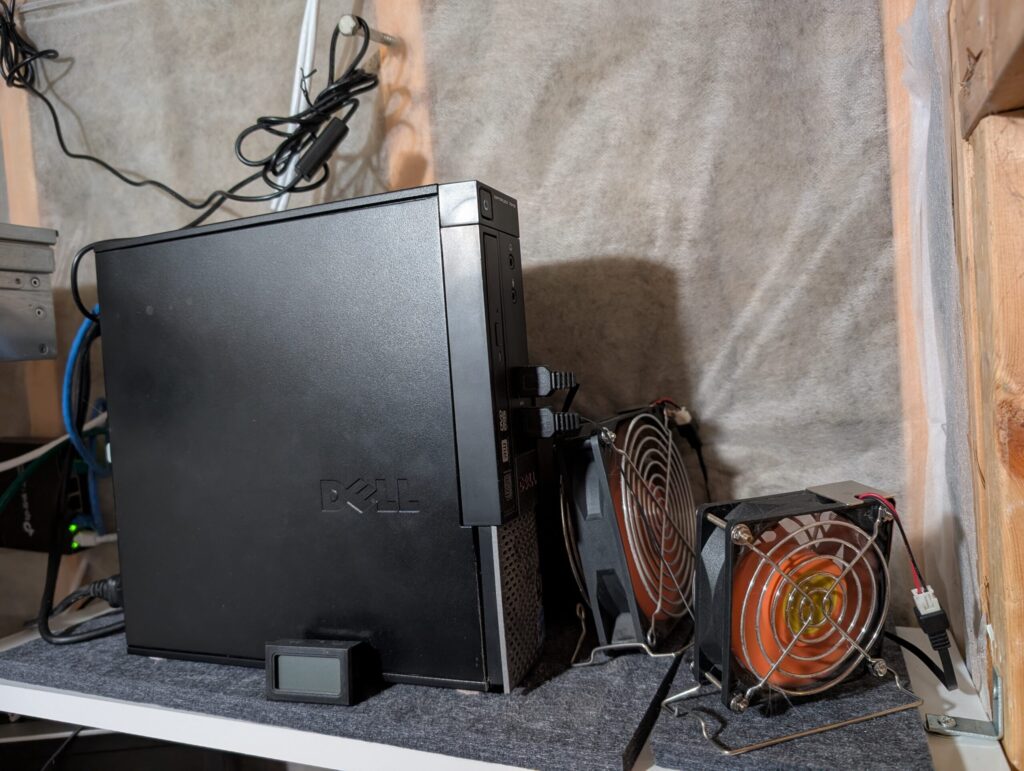
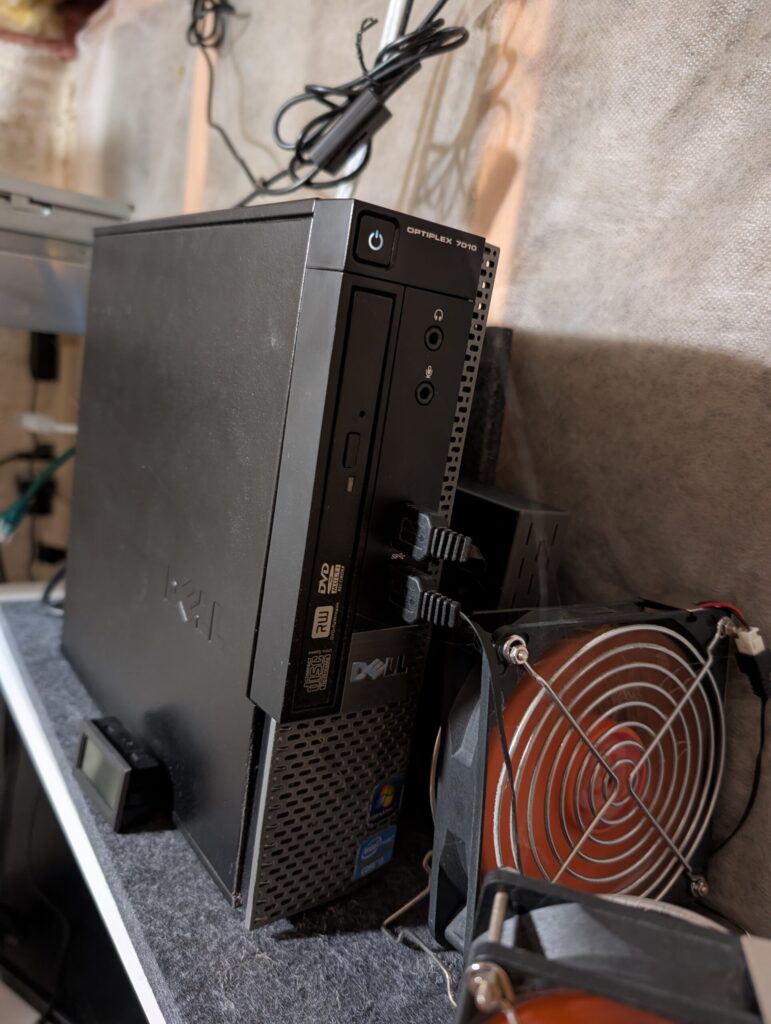
As this machine also is not used all the time, the external drive is set to power off after twenty minutes of inactivity. I just had to flash the firmware of the external enclosure so it exposed the power down when not active option.
You can see how warm it gets in this external case in the HA image below. Ideally, I would have used a desktop case large enough to fit the 6TB drive internally, but I used what was available on my shelf. The smaller size also made placement in the sump closet easier.
It isn’t powerful, attractive or particularly interesting hardware. That’s also exactly why I like using it for this job. A backup target doesn’t need to be exciting.
Spend the Money Where It Matters
The computers in all three of these backup systems were free. The operating system is free. Tailscale costs us nothing for this use. Small boot SSDs are inexpensive.
The hard drives are where the money went.
I think that’s a reasonable way to approach backup storage, especially when large hard drives are expensive. I’d rather put the money into the storage itself than spend hundreds of dollars on a new NAS or computer whose primary job is going to be receiving files in the middle of the night.
These aren’t replacements for my primary servers, and I wouldn’t suggest that everyone grab the oldest desktop they can find and start trusting it blindly. Old hardware has limitations. Cooling may need attention. Power consumption should be considered. Drives need to be monitored. And a backup isn’t particularly useful if you’ve never verified that you can restore from it.
But the computer required to hold a backup doesn’t necessarily need to be new.
Sometimes it can be a machine that was literally on its way to the recycling center.
Leave a Reply