Back in 2012, I built a desktop computer for my parents. It was an AMD quad-core system, running Windows 7, and was a perfectly respectable machine for its day. In fact, it was the exact same hardware that my first ESXi build featured.
Over the years, it received a few upgrades. More RAM when I decommed the ESXi machine, a replacement power supply from the same source, and eventually a SATA SSD to replace the original boot drive (and get Win10 installed on it). Those upgrades helped keep it useful long after most people would have replaced it.
But by 2026, it was fourteen years old, still running Windows 10, and getting a little long in the tooth. The replacement power supply had finally given up the ghost, and the PC no longer turned on..
It was time.
What Did They Actually Need?
Mom and Dad don’t need a gaming computer or anything particularly fancy. They use their computer for everyday tasks like browsing the web, email, Word documents, and other ordinary activities. Most importantly, they just want it to work when they sit down. They also like to leave it on all the time (probably due to my recommendation).
There were a few requirements, though.
First, I wanted to keep the total cost around $300, including tax. I wasn’t interested in spending $600 or $700 to replace a machine that was primarily used for ordinary desktop tasks.
Second, they still use DVDs and CDs, so an optical drive was a requirement. We had burned through four or five over the years; they all eventually failed.
Third, their existing computer had a nice Samsung 860 EVO SSD and a 3.5-inch hard drive used for media storage and Plex. I wanted to be able to move those drives into the replacement rather than deal with external USB enclosures or abandon perfectly good storage.
That ruled out a lot of the tiny business desktops you see for sale, or that occasionally showed up at my house after work hardware refreshes. I needed a traditional tower.
Why Buy Used?
I’ve been buying used enterprise equipment for my home lab for years. Servers, hard drives, and other equipment that originally cost quite a bit of money can often be purchased for a fraction of their original price and last many years.
The same principle applies to business desktop computers.
Companies replace large numbers of perfectly functional PCs as part of their regular hardware refresh cycles. Those machines eventually end up with refurbishers and resellers. For someone who doesn’t need the latest graphics card or processor, they can be a very good value.
I started looking at used Dell OptiPlex mini towers. I wanted something new enough to run Windows 11 properly, with sufficient room for the existing drives. I also liked that these were business-class machines, designed for many years of use.
Eventually, I settled on a Dell OptiPlex 7070 MT.
What Did $300 Get Me?
Here’s what I ended up buying on eBay:
| Component | Specification |
|---|---|
| Computer | Dell OptiPlex 7070 Mini Tower |
| Processor | Intel Core i7-9700, 3.0GHz |
| Memory | 16GB RAM |
| Primary storage | 512GB NVMe SSD |
| Operating system | Windows 11 Pro |
| Optical drive | DVD drive |
| Condition | Good — Refurbished |
| Total purchase price | $301.69 |
I ordered it on September 16, 2026, from eBay seller proearthtech, and it arrived on September 22, exactly as advertised. It ended up being a very close physical match to the 2012 machine, only cleaner and considerably quieter.
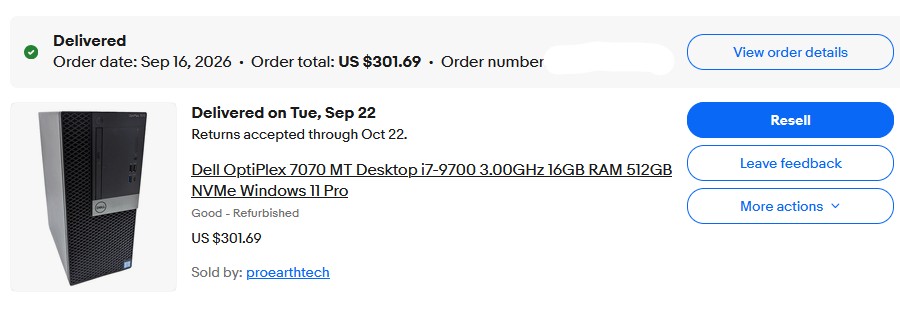
For just over $300, I was getting an eight-core Intel processor, 16GB of memory, an NVMe boot drive, and Windows 11 Pro.
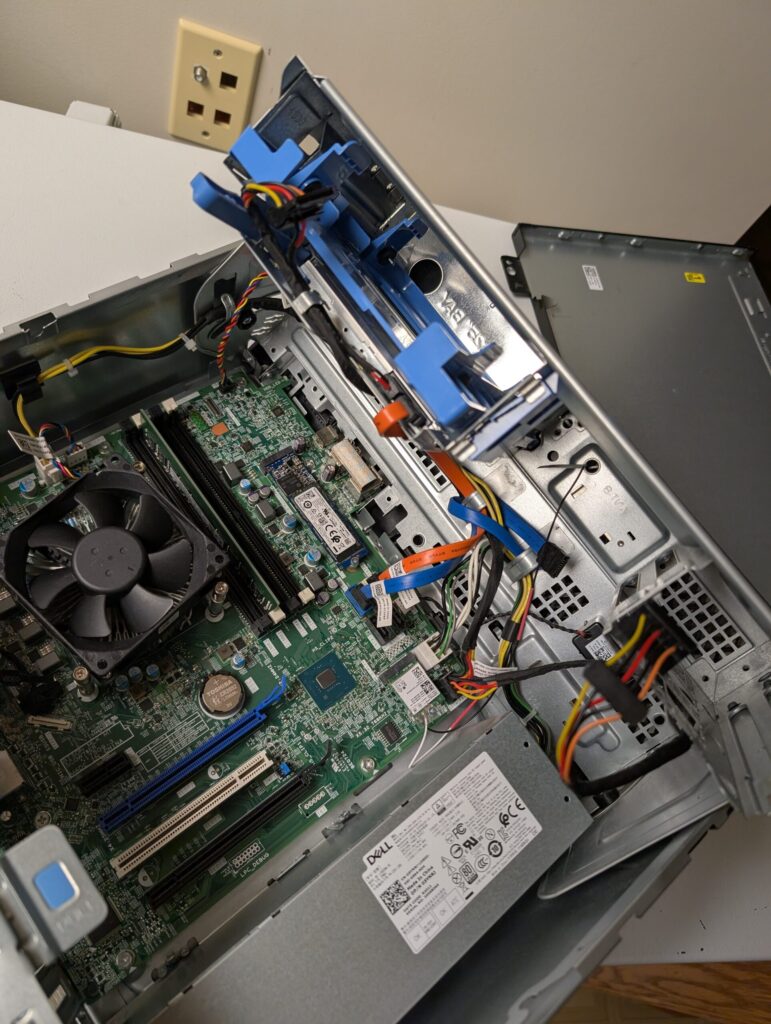
That’s considerably more computer than my parents need for their daily activities. And because it’s a Mini Tower rather than one of Dell’s Micro systems, there’s room to install additional internal drives. I was quite pleased when I popped the case open and saw all the space, and, in my opinion, that it looked as clean as it had been new.
For $300.
Setting Up the Replacement
Before I took the OptiPlex over to my parents’ house, I did as much preparation as possible.
Mom and Dad had provided me with the Windows account information they wanted, so I created their accounts ahead of time, including the administrator and standard user accounts. I also installed a few pieces of software they’d need and got Windows 11 updated.
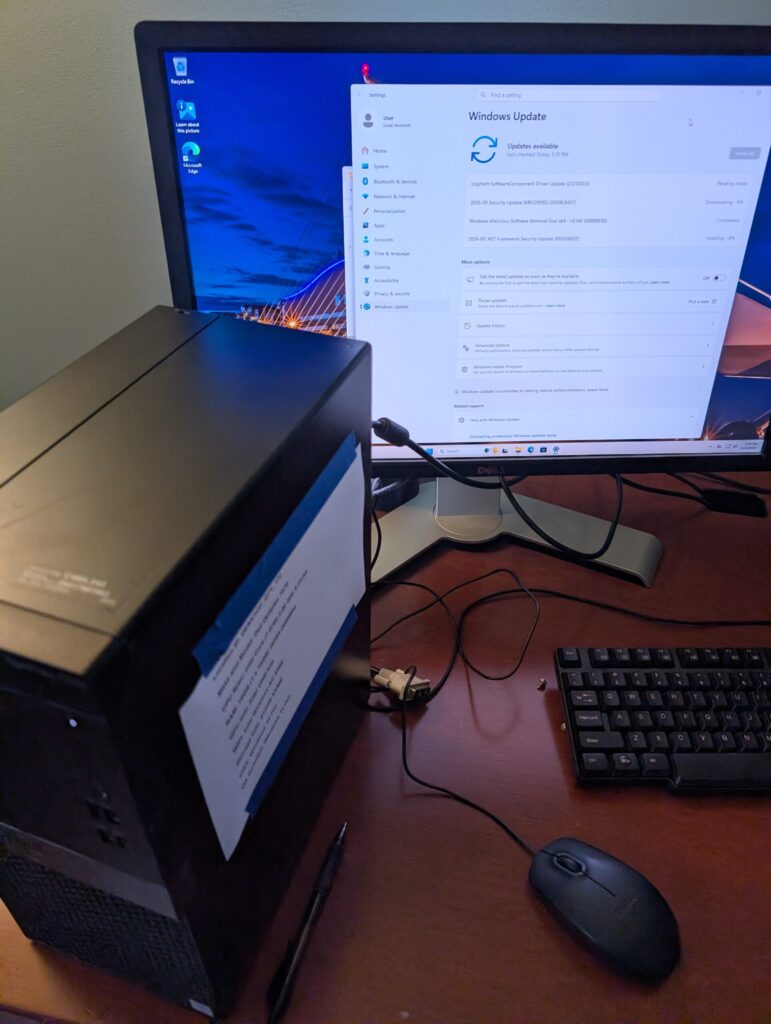
One of my priorities was making the new computer work as much like their old one as possible. They’d been using that machine for fourteen years, and I didn’t want to make them learn a bunch of new things just because the hardware had changed. That was my goal.
Reusing the Existing Drives
One of the reasons I chose the Mini Tower was its ability to accommodate the drives from the old computer.
Since the old computer wouldn’t power on, I needed to move those drives into the OptiPlex to recover their existing files.
I made the drive to their house to present the new toy, and continue the setup.
The replacement already had a 512GB NVMe SSD for Windows 11, so I didn’t need to reuse the old SATA SSD as the boot drive. Instead, I installed it as an additional internal drive, which also gave me access to the old Windows installation and its files. I’d originally partitioned the drive in two, so the second partition was used for document and photo storage by them.
I also moved over their existing 3.5-inch hard drive, which contains their media storage and is used for their local Plex server. Dad likes the music he ripped from boxes of CDs years ago, and now he can enjoy it throughout the house on one of their several Rokus.
Both drives installed successfully and are working in the OptiPlex. This meant I could retain their existing storage without having to buy replacement drives or copy everything onto new disks.
I also had to change a few drive letters in Windows Disk Management to match their previous assignments. I renamed the old boot drive to “OLD BOOT DRIVE – Don’t Use” so it would be easy to identify, and assigned it a drive letter near the end of the alphabet to keep it out of the way.
Moving Firefox and Thunderbird
Both of my parents use Firefox and Thunderbird, and I wanted their existing browser and email configurations to come over intact.
I had installed fresh copies of both programs on the OptiPlex before leaving home. At their house, I copied their existing profile folders from the old C: drive into the corresponding Firefox and Thunderbird profile locations on the new machine. Using the programs’ startup parameters, I pointed each application to the transferred profiles.
And it worked perfectly.
Their bookmarks, email, folders, settings, and other information were right where they expected them to be. No need to recreate custom folders. Mom does a lot of charity work so an unusual number of folders had been created to help keep everything well organized. The emails from the prior week when they were out of commission came right down as new.
I did have to increase the font sizes to make things easier to read, but that was a minor adjustment. Google solved that.
Making It Familiar
Once I got to this point, I brought Mom in to finish getting everything configured. I needed to understand how she had used the machine, and where she expected everything to be.
We went through the desktop items from the old boot drive and put back the things she wanted. I also adjusted various settings to match how they’d been using the previous computer.
I installed the drivers for their laser printer and made sure it was working before I left.
My goal was simple: when they sat down at the new computer, I wanted everything to be where they expected it. The computer might be completely different underneath, but their daily routine shouldn’t have to change.
A Couple of Annoyances
Naturally, things weren’t entirely trouble-free. At one point, the display was stuck at 640×480 resolution over DisplayPort. After some troubleshooting, reseating the cable resolved the problem. Less than ten minutes to solve that.
I also initially installed Bitdefender Free at home, but ultimately removed it and went with Microsoft Defender, which is already built into Windows 11. One less piece of software to maintain.
Backing It Up
I also installed Veeam Agent for Microsoft Windows and configured it to back up to a 3TB external USB hard drive.
I already had a spare Seagate NAS drive available, which passed an extended diagnostic test, so I put it to use rather than buying another drive.
The backup job is configured to start automatically when the external drive becomes available.
That makes the process pretty simple for Mom and Dad. They power on the external drive, Veeam recognizes that it’s available and starts the backup, and they wait until the job finishes before powering the drive off again. They’ve used Veeam in the past, so Dad was very comfortable with it already. I walked Mom through Veeam’s file restore interface, just so she saw it once. I know if the need ever arises, they’ll likely call me anyhow to walk them through.
The subsequent backups are incremental, so Veeam only needs to back up the changes rather than copying everything every time. They know how to do this themselves, which means I don’t need to be there to run their backups. And keeping the drive powered off between backups provides some protection against problems that might affect a backup disk that’s constantly connected and accessible.
Was It Worth It?
Absolutely.
For $301.69, my parents went from a fourteen-year-old AMD desktop running Windows 10 to a considerably newer Intel Core i7 system running Windows 11 Pro.
Performance has been great. For everything they do, the OptiPlex has more than enough horsepower.
And we retained their existing SATA SSD, their 3.5-inch media drive, and the files and configurations they’d accumulated over the years. But the most important part wasn’t the processor or the memory. Their email was there. Their browser was familiar. Their desktop had the things they expected. Their printer worked.
Everything just worked.
There’s nothing wrong with buying a new computer, and there are certainly situations where it makes sense. But for ordinary desktop use, I have a hard time justifying the expense when refurbished business machines like these are available.
The old computer gave us fourteen years of service. If this OptiPlex gives them even another five or six, I’ll consider it money very well spent.
Leave a Reply